Prerequisites: what must be on the host
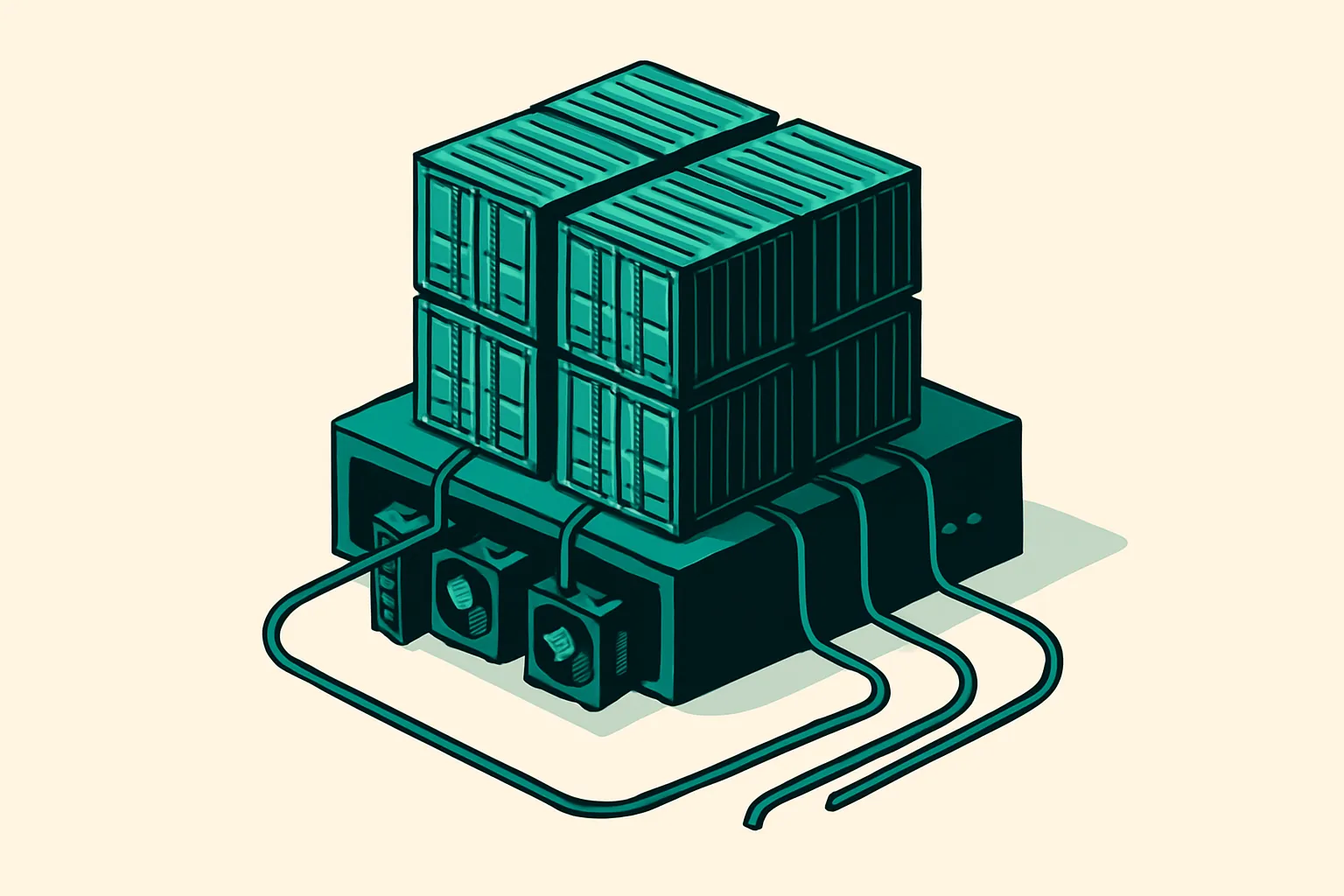
Containers do not carry the GPU driver. The kernel driver lives on the host and the NVIDIA Container Toolkit mounts the user-space driver libraries and device files into each container at start. That is why a CUDA image built on one machine runs on another, as long as the host driver is new enough for the CUDA version inside the image.
NVIDIA’s install guide lists three prerequisites: the NVIDIA driver for your Linux distribution, a supported container engine (Docker, containerd, CRI-O or Podman), and the toolkit itself. Most rented GPU instances ship with the driver installed; many also ship with the toolkit, so check before you install. Any NVIDIA data center or workstation GPU works; the GPU choice depends on the workload you will containerize, which how to choose a GPU for AI covers.
References: NVIDIA Container Toolkit: installation guide
Step 1: confirm the driver and Docker
Run nvidia-smi on the host. It should list every GPU you rented and show a driver version and the highest CUDA version that driver supports. If nvidia-smi fails on the host, no container setting will fix it; the driver must be repaired first.
Run docker version to confirm Docker Engine is installed and the daemon is running. Then check whether the toolkit is already present with nvidia-ctk --version. If it prints a version, skip to Step 3.
References: NVIDIA System Management Interface · NVIDIA Container Toolkit: installation guide
Step 2: install the NVIDIA Container Toolkit
On Ubuntu or Debian, NVIDIA documents four commands. First the prerequisites: sudo apt-get update && sudo apt-get install -y --no-install-recommends ca-certificates curl gnupg2. Second, add the signed repository: curl -fsSL https://nvidia.github.io/libnvidia-container/gpgkey | sudo gpg --dearmor -o /usr/share/keyrings/nvidia-container-toolkit-keyring.gpg, then fetch https://nvidia.github.io/libnvidia-container/stable/deb/nvidia-container-toolkit.list, pipe it through the sed command on NVIDIA’s page that adds the signed-by keyring, and write it to /etc/apt/sources.list.d/nvidia-container-toolkit.list with sudo tee.
Third, refresh with sudo apt-get update. Fourth, install a pinned version. The guide sets export NVIDIA_CONTAINER_TOOLKIT_VERSION=1.20.2-1 and installs nvidia-container-toolkit, nvidia-container-toolkit-base, libnvidia-container-tools and libnvidia-container1 at that version. Pinning keeps every node in a fleet on the same toolkit.
Copy the repository command from NVIDIA’s page rather than retyping it; one wrong character in the sed expression breaks apt signature checks. RPM-based distributions have an equivalent dnf or zypper path on the same page.
References: NVIDIA Container Toolkit: installation guide
Step 3: configure Docker and test a GPU container
Register the NVIDIA runtime with Docker: sudo nvidia-ctk runtime configure --runtime=docker, then sudo systemctl restart docker. The command edits the Docker daemon configuration for you. For rootless Docker, NVIDIA documents nvidia-ctk runtime configure --runtime=docker --config=$HOME/.config/docker/daemon.json, systemctl --user restart docker, and sudo nvidia-ctk config --set nvidia-container-cli.no-cgroups --in-place.
Test with NVIDIA’s sample workload: sudo docker run --rm --runtime=nvidia --gpus all ubuntu nvidia-smi. The output should be the same nvidia-smi table you saw on the host. If it is, Docker with NVIDIA GPUs is working, and any CUDA image will see the cards.
References: NVIDIA Container Toolkit: installation guide · NVIDIA Container Toolkit: running a sample workload
Step 4: choose which GPUs a container gets
The --gpus flag, available since Docker 19.03, accepts all, a count, or specific devices by index or UUID. Device lists need nested quotes, as in --gpus '"device=0,2"', because the value contains a comma. UUIDs from nvidia-smi -L are the most stable choice, since index order can change between boots.
The NVIDIA runtime also reads environment variables. NVIDIA_VISIBLE_DEVICES selects devices, and is all by default in the base CUDA images. NVIDIA_DRIVER_CAPABILITIES chooses which driver libraries are mounted; the default is compute and utility, which covers CUDA and nvidia-smi. Video encoding or graphics workloads need those capabilities added.
| Goal | Flag or variable | Example |
|---|---|---|
| All GPUs | --gpus all | docker run --rm --gpus all ubuntu nvidia-smi |
| Any two GPUs | --gpus 2 | docker run --rm --gpus 2 ubuntu nvidia-smi |
| GPUs 0 and 2 | --gpus '"device=0,2"' | Nested quotes are required for the comma |
| One GPU by UUID | --gpus device=GPU-UUID | UUID from nvidia-smi -L |
| CDI, all GPUs | --device nvidia.com/gpu=all | Docker Engine with CDI enabled |
| Runtime env selection | -e NVIDIA_VISIBLE_DEVICES=1,2 | Used with --runtime=nvidia |
| Driver features | -e NVIDIA_DRIVER_CAPABILITIES=compute,utility | Default set; add video or graphics if needed |
References: NVIDIA Container Toolkit: specialized configurations with Docker · Docker documentation: docker container run

Step 5: use CDI device names
The Container Device Interface (CDI) is a standard way to describe devices to any container engine. NVIDIA’s CDI page says that since toolkit v1.18.0 a systemd service called nvidia-cdi-refresh generates and updates the CDI spec automatically on toolkit or driver installs and on reboot. To generate it by hand, run sudo nvidia-ctk cdi generate --output=/var/run/cdi/nvidia.yaml, and list the names it defines with nvidia-ctk cdi list.
The names look like nvidia.com/gpu=all or nvidia.com/gpu=0. Docker’s dockerd reference says CDI is enabled by default since Docker Engine 28.3.0, and docker run accepts a fully qualified CDI name through --device, so docker run --rm --device nvidia.com/gpu=all ubuntu nvidia-smi works without the --gpus flag. NVIDIA recommends CDI for Podman, where the equivalent is podman run --rm --device nvidia.com/gpu=all --security-opt=label=disable ubuntu nvidia-smi -L.
References: NVIDIA Container Toolkit: Container Device Interface support · Docker documentation: dockerd reference (CDI) · Docker documentation: docker container run
Step 6: request GPUs in Docker Compose
Compose reserves GPUs under the service’s deploy key: deploy, resources, reservations, devices, with an entry of driver: nvidia, count: 1 and capabilities: [gpu]. Docker’s Compose guide says capabilities must be set or deployment fails, that count: all or an omitted count uses every GPU on the host, and that count and device_ids are mutually exclusive. To pin cards, replace count with device_ids: ['0', '3'].
For a model server in Compose, also publish its port as 127.0.0.1:PORT:PORT. Docker’s port publishing guide warns that a plain published port is reachable from the outside world, and an inference API or notebook should not be. Reach it with an SSH tunnel such as ssh -N -L 8000:localhost:8000 user@host. The vLLM deployment guide and Ollama guide show full GPU containers built this way.
References: Docker documentation: GPU support in Compose · Docker documentation: port publishing
Common Docker with NVIDIA GPUs errors
Most failures trace back to a missing toolkit, a Docker daemon that was not restarted, or a host driver older than the image’s CUDA version. The guide to could not select device driver covers the most common one in depth.
| Symptom | Likely cause | Fix |
|---|---|---|
| could not select device driver "" with capabilities: [[gpu]] | Toolkit missing or Docker not configured | Install the toolkit, run nvidia-ctk runtime configure, restart Docker |
| nvidia-smi works on host, not in container | Container started without --gpus or --device | Add --gpus all or a CDI device name |
| CUDA driver version is insufficient | Image CUDA newer than the host driver | Use an older CUDA image tag or update the driver |
| Docker cannot resolve the CDI device nvidia.com/gpu=all | CDI spec not generated | Run nvidia-ctk cdi generate; check nvidia-ctk cdi list |
| Compose fails on deploy | capabilities missing, or count and device_ids both set | Set capabilities: [gpu]; keep only one of count or device_ids |
| Wrong GPU in container | Index order changed | Select by UUID |
| Errors after a driver upgrade | Stale CDI spec | Regenerate the spec or reboot so nvidia-cdi-refresh runs |
References: NVIDIA Container Toolkit: installation guide · NVIDIA Container Toolkit: Container Device Interface support · Docker documentation: GPU support in Compose
Illustrative cost and checklist
Setup time is billed time. As an illustration at an assumed $2.00 per GPU-hour, an eight-GPU node that spends 45 minutes on manual toolkit installs before every job burns 6 GPU-hours, or $12, each time; at 20 jobs a month that is $240 of setup. Baking the toolkit into your machine image or using instances that ship with it removes that cost. GPU-hour cost explained covers the arithmetic.
Checklist: nvidia-smi works on the host. Toolkit installed at a pinned version. nvidia-ctk runtime configure run and Docker restarted. Sample container prints the same GPUs. GPUs selected by UUID or CDI name. Compose reservations include capabilities. Service ports published to 127.0.0.1 and reached by SSH tunnel.
With a working container setup you can move between machines freely. On NeuraMesh you choose the GPU, a plan, GPU count, hours and region on rent GPUs, and receive a confirmed quotation, typically within one business day, with nothing charged until you approve.
NeuraMesh prices for these GPUs
| GPU | Memory | Data center | Value |
|---|---|---|---|
| RTX 4090 | 24 GB | $0.46 | $0.40 |
| L40S | 48 GB | $1.26 | $0.54 |
| A100 | 80 GB | $1.56 | $0.98 |
| H100 | 80 GB | $2.88 | $2.00 |
Every order is confirmed in a quotation before you pay. See all GPU prices.
Questions readers ask
Do I need the NVIDIA Container Toolkit to use Docker with NVIDIA GPUs?
Yes. The toolkit injects the host driver libraries and device files into containers. Without it, Docker cannot satisfy --gpus requests and typically fails with could not select device driver.
Do I install the NVIDIA driver inside the container?
No. The driver stays on the host, and the toolkit mounts its user-space libraries into the container. The image only needs the CUDA libraries your application uses, and the host driver must support that CUDA version.
What is the difference between --gpus and CDI?
--gpus is Docker’s GPU flag and relies on the NVIDIA runtime hook. CDI is an engine-neutral spec; with Docker Engine 28.3.0 or later CDI is on by default and you pass names like nvidia.com/gpu=all through --device.
How do I give a Compose service one specific GPU?
Under deploy.resources.reservations.devices, set driver: nvidia, device_ids to the GPU index or UUID, and capabilities: [gpu]. Do not also set count, since count and device_ids are mutually exclusive.
Why does nvidia-smi inside the container show a different CUDA version?
nvidia-smi reports the highest CUDA version the host driver supports, not the CUDA toolkit in the image. Check the image’s CUDA version separately and make sure it is no newer than the driver allows.
Sources and editorial notes
- NVIDIA Container Toolkit: installation guide
- NVIDIA System Management Interface
- NVIDIA Container Toolkit: running a sample workload
- NVIDIA Container Toolkit: specialized configurations with Docker
- Docker documentation: docker container run
- NVIDIA Container Toolkit: Container Device Interface support
- Docker documentation: dockerd reference (CDI)
- Docker documentation: GPU support in Compose
- Docker documentation: port publishing
Primary documentation reviewed November 24, 2026. Provider descriptions reflect published documentation. Recommendations are our analysis; worked figures are illustrative unless explicitly stated otherwise. No independent provider benchmark or uptime ranking is claimed.
Need this GPU? Rent it from NeuraMesh: choose a GPU and plan, get a confirmed quotation, and pay only when you approve. See pricing.